People directory
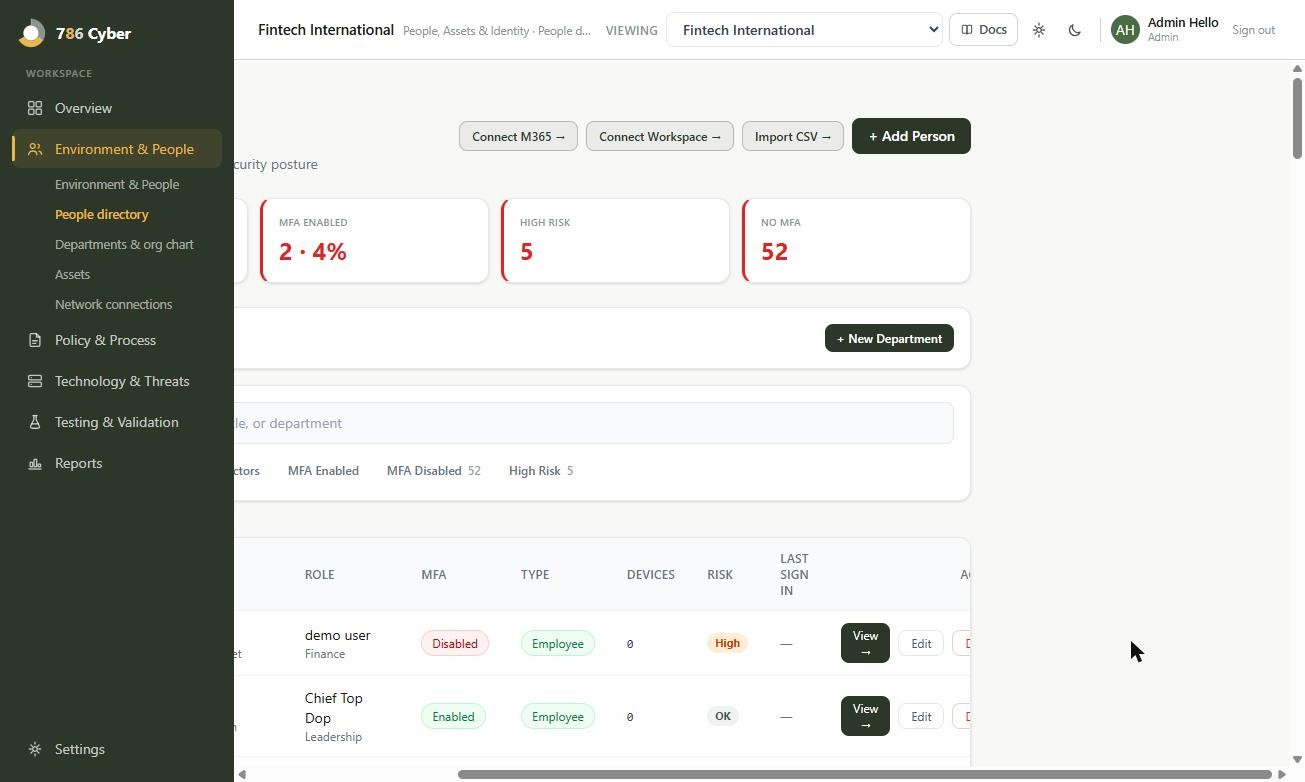
Part of the Environment & People dashboard.
Your people are part of your attack surface. This section builds a directory of everyone in your organisation, then surfaces the risks tied to them — who lacks multi‑factor authentication (MFA), who has turned up in a known data breach, and how identity risk is trending.
Adding your people
Section titled “Adding your people”There are three ways to populate the People Directory, and you can mix them:
1. Sync from Microsoft 365 or Google Workspace (recommended)
Section titled “1. Sync from Microsoft 365 or Google Workspace (recommended)”If you use Microsoft 365 or Google Workspace, connect one once and your directory fills itself:
- Go to Environment & People → People directory (or Settings → Integrations, depending on your build).
- Choose Connect Microsoft 365 or Connect Google Workspace and approve the read‑only access when prompted.
- Your staff sync across automatically, bringing MFA status, department, and device data with them.
The sync is genuine directory data, so it stays closer to reality than a spreadsheet and refreshes as your organisation changes. Both connectors work the same way and cover the same ground — pick whichever is your organisation’s identity provider.
2. Import a CSV
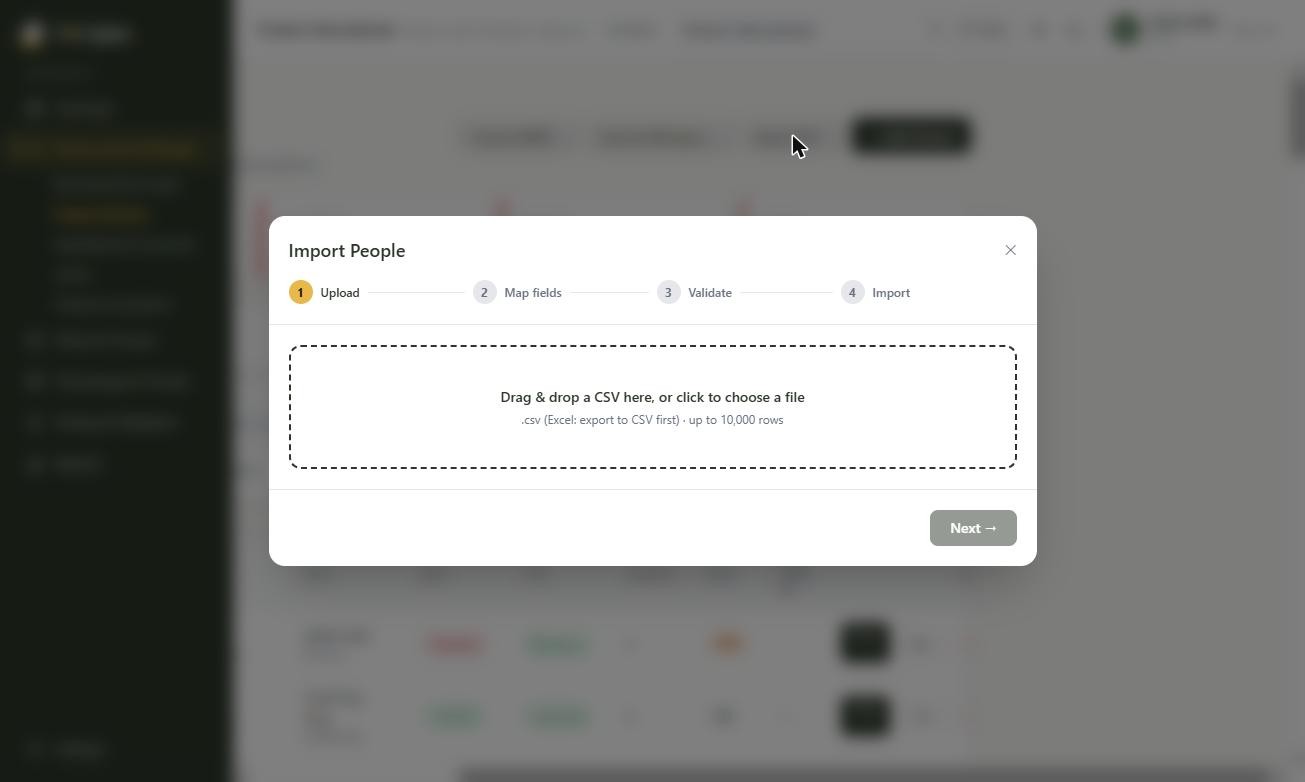
Section titled “2. Import a CSV”No Microsoft 365 or Google Workspace, or want to bring in contractors and others alongside a sync? Use the built‑in Import Wizard — a consistent 4‑step flow used across the platform:
- Upload your CSV.
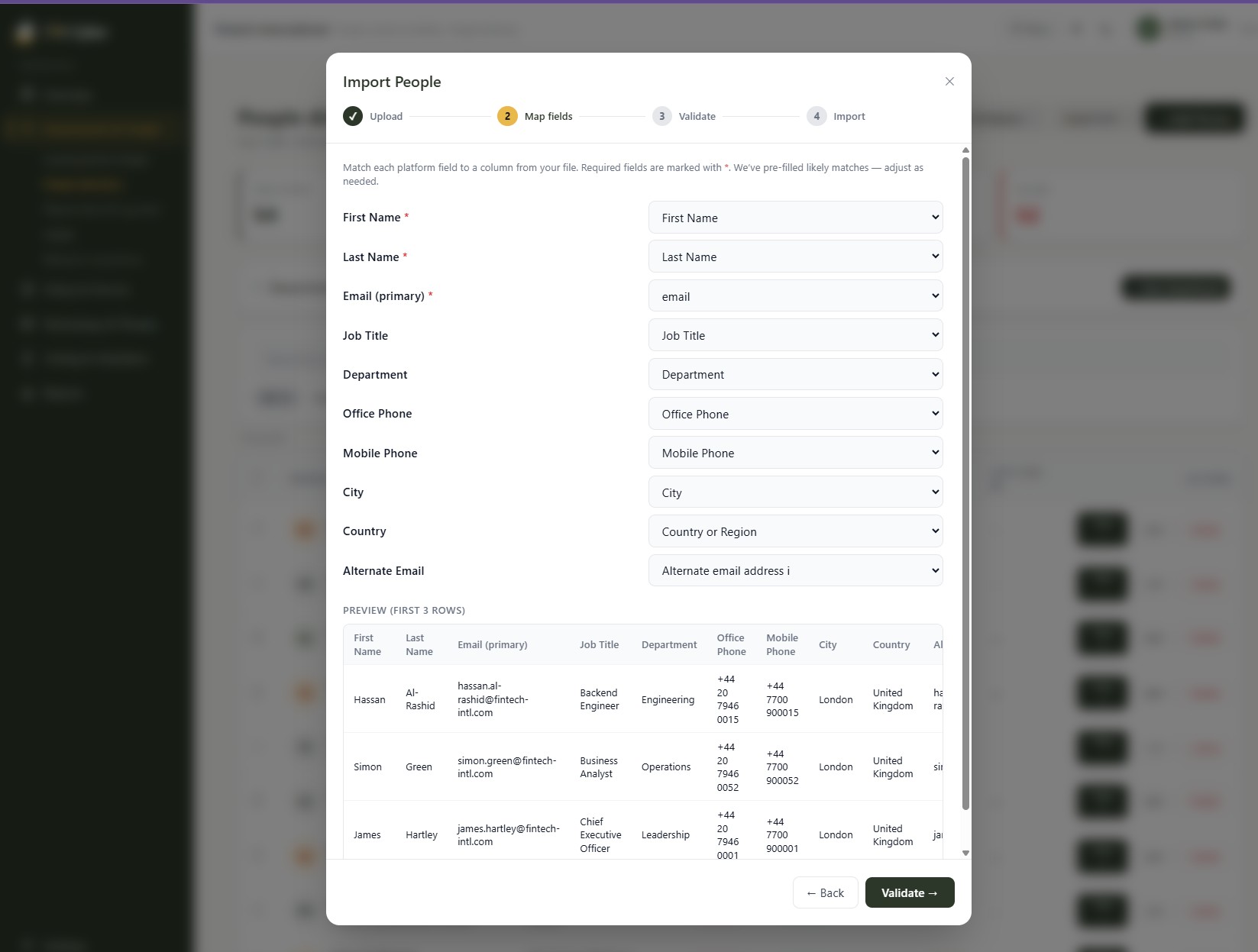
- Map your columns to 786 Cyber fields (name, email, department, manager, and more).
- Validate — the wizard checks every row and flags problems before anything is saved.
- Import — commit the rows.
This isn’t just a bulk-upload box. The wizard is built for exactly the messy exports real organisations have: departments named inconsistently across systems are auto‑created and fuzzy‑matched, so “IT” and “I.T.” land in the same department instead of quietly forking your org structure into two. Validation catches problems — missing required fields, malformed emails, unmapped columns — before a single row is saved, not after. And because every import can be rolled back for 24 hours with one click, importing a large or unfamiliar file is never a one-way door.
Safety net: every import can be rolled back for 24 hours, so you can undo a bad file with one click. Departments referenced in your file are auto‑created and fuzzy‑matched so near-duplicate names don’t create near-duplicate departments.
3. Add someone manually
Section titled “3. Add someone manually”For one‑offs, use Add person and fill in the form directly.
Using a different identity provider or HR system? Microsoft 365 and Google Workspace are the two built‑in sync connectors today, with more planned — CSV import in the meantime means you’re never blocked on a native connector to get your directory in. If there’s a specific tool you’d like 786 Cyber to connect to natively, let us know — integrations are prioritised based on what customers actually ask for.
The person detail view
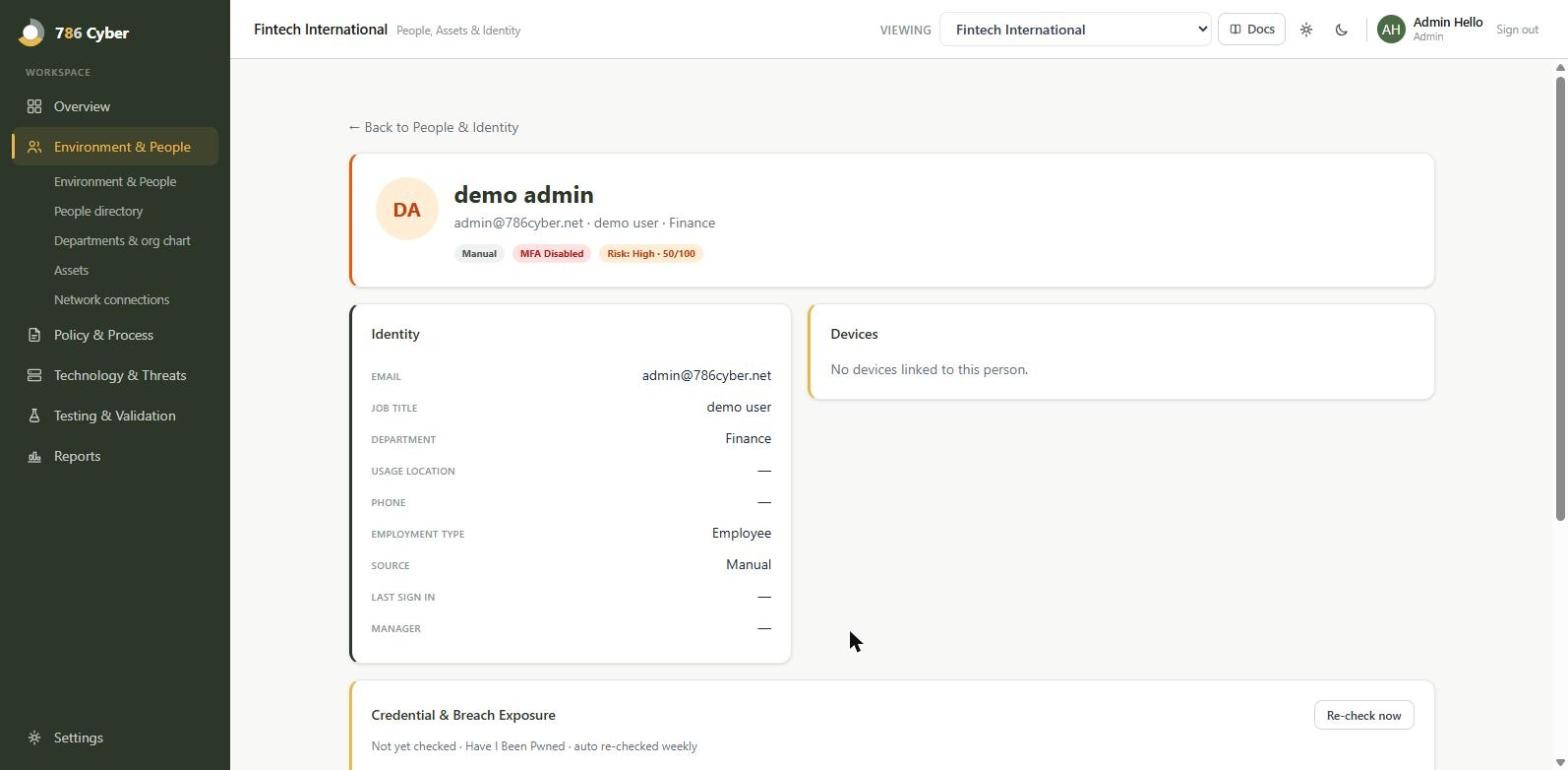
Section titled “The person detail view”Click any person to open their detail view, which brings together:
- Devices linked to them
- Alternate email addresses
- Their manager (used to build your org chart)
- Credential & breach exposure — whether their details appear in known breaches
MFA status
Section titled “MFA status”MFA is tracked as three states, not a simple yes/no:
- Enabled
- Disabled
- Unknown (we don’t yet have the data)
“Unknown” is never quietly treated as “disabled” — you always know the difference. MFA coverage is one of the snapshot indicators on your dashboard.
Credential & breach exposure
Section titled “Credential & breach exposure”786 Cyber checks your people against known breach data (via Have I Been Pwned). Anyone whose credentials appear in a breach is flagged on their detail view and rolled up as a credential‑exposure indicator on the dashboard, so you can prompt password resets and MFA where it matters most.
Joiners, movers and leavers
Section titled “Joiners, movers and leavers”Every framework in the catalogue asks for the same thing in some form: a documented process for people arriving, changing role and leaving — and evidence that a leaver actually lost access, quickly. NCA ECC, SAMA CSF and the general access‑control controls all want “recent leaver evidence: account disabled within target SLA (24–48 hours)”.
Until now that meant pairing your people directory with HR records by hand. 786 Cyber produces the artefact for you.
Starting an event
Section titled “Starting an event”Open anyone’s record and choose Start event — joiner, mover, or leaver. A leaver asks for the last working day, an optional reason (resignation, termination, contract end), and an involuntary termination tickbox, which changes the deadline to immediate rather than the standard window.
The checklist builds itself
Section titled “The checklist builds itself”You don’t write the checklist. 786 Cyber generates it from records it already holds, so every line is tied to something real:
- One line per device assigned to them — recover or reassign each one
- One line per compliance control they own — reassign it, or the control silently keeps an owner who no longer works for you
- Revoke their 786 Cyber platform access — the one step that’s ours to act on
- Transfer mailbox and files — your attestation; we hold no data to check this against
Completing a leaver event marks that person offboarded in your directory. It doesn’t stop the watch: the directory keeps checking for the disable after you close the checklist, and the SLA clock only stops when it sees it.
The one item you can’t tick
Section titled “The one item you can’t tick”Disable the directory account has no tickbox. It ticks itself when your next Microsoft 365 or Google Workspace sync observes that the account has actually gone disabled.
Suspend it or delete it: both count. Whichever your administrator does, access has ended, and the sync records which:
- Suspended, blocked or archived (account disabled): the time is the first sync that saw the account disabled. Many organisations do this first, so the mailbox and files can be kept or handed over before the account goes.
- Deleted (account deleted): the time is the first sync that no longer found the account in your directory. That’s the latest the deletion can have happened, so it never flatters your SLA. If you know the exact time, attest it (below).
A sync that comes back with far fewer people than usual (more than a quarter missing at once) is treated as a failed fetch, not a mass departure, so nobody is marked deleted from it. Only the person’s own directory counts: someone from Microsoft 365 is never marked deleted because a Google Workspace sync didn’t list them.
That’s deliberate, and it’s the heart of how this works:
786 Cyber doesn’t revoke access — it proves you did. Your administrator disables the account in Microsoft 365 or Google Workspace exactly as they always have. We watch the directory, record the moment the account genuinely went away, and measure it against your SLA.
This keeps us on read‑only access to your directory — we ask for no permission to change anything in your tenant. And for an auditor it’s the stronger evidence: watching your identity provider’s actual state beats any vendor’s claim about what it did.
A checklist item that could be ticked by hand would turn observed evidence back into somebody’s word for it, so that item doesn’t offer one.
Your revocation SLA
Section titled “Your revocation SLA”24 hours by default, changeable to 48 in settings. Involuntary terminations are immediate — no grace window.
Only 24 and 48 are accepted. That’s on purpose: an SLA you can set to anything is not an SLA, and the frameworks that ask for this name the 24–48 hour range specifically.
Attesting when access was revoked
Section titled “Attesting when access was revoked”Sometimes you know exactly when the account was disabled — IT did it at the exit interview — and the next sync won’t run until tomorrow morning. Or your directory isn’t connected at all. For both, a leaver has Attest when access was revoked: give the date and time, and an optional note.
An attestation is a second record, kept next to the observation — never in place of it:
- It doesn’t tick Disable the directory account, and it doesn’t change the SLA result or the within‑SLA figure. Those stay on what the directory observed.
- The directory checks it. Once a sync sees the account disabled, the attestation shows as Corroborated. If a sync after the time you gave still sees the account enabled, it shows as Contradicted, with the time of that sync (an hour’s grace allows for directory changes taking a few minutes to land). Until then it reads Awaiting directory confirmation — or Cannot be checked if no directory sync has ever seen this person.
- It can’t be edited once saved. An attestation someone could quietly revise after the directory contradicted it wouldn’t be evidence.
You can attest on an open leaver or one you’ve already marked complete.
Why keep both? The daily sweep can only say the account was disabled no later than the moment it looked. Your attestation gives the precise time; the observation proves it happened. When they agree, the report shows both. When they don’t, you want to know before an auditor does.
Possible leavers, detected for you
Section titled “Possible leavers, detected for you”A leaver event only exists if someone remembers to create one. The riskiest departure is the one nobody told the platform about — so your directory syncs, plus a daily sweep that runs whether or not anyone presses Sync, flag people who look like leavers with no event recorded:
- The account was observed disabled and no leaver event exists — the one that matters most, because it means access was revoked and nothing evidenced it
- The person is no longer in the directory
- The account is still enabled but dormant — no sign‑in for over 90 days. This is marked a weak signal, because parental leave, secondment and long‑term sickness look identical from here
These appear above your People directory as suggestions.
A suggestion changes nothing. Nobody is offboarded, no status changes, and no SLA clock starts. It’s a question, not a decision. Choose Confirm as leaver — which asks you for the last working day, because a sync can’t know it — and that creates the event. Not a leaver dismisses it, and it won’t come back unless something stronger turns up later (a dismissed dormant account that is later disabled will be raised again).
When you first connect a directory, expect a batch of these: any account already sitting disabled while still active in your people list gets flagged. That’s the point — those are exactly the departures nobody evidenced — but service accounts and break‑glass accounts will be in there too. Dismiss them once and they stay dismissed.
The leaver evidence report
Section titled “The leaver evidence report”On Environment & People, under Prove it, is the artefact all of this exists to produce. For each leaver it shows the last working day, when revocation was observed, how many hours that took against your SLA, and how it was confirmed.
Two things it will never do:
- Blur observed and attested. Observed disabled and Attested are separate columns, because to an auditor they’re different grades of evidence. The attested column carries the directory’s verdict on it — corroborated, contradicted, awaiting check, or not checkable — and a contradiction is called out above the table, not buried in it.
- Flatter the percentage. Your within‑SLA figure is calculated over the revocations a directory sync actually observed — never over every leaver, and never counting attestations. Otherwise the leavers we know nothing about, or only have someone’s word for, would quietly count as passes.
Use Save to evidence vault and the report becomes an evidence item you can attach to an assessment answer, which is what makes it satisfy the control rather than simply look reassuring on screen.
What a mover does, and doesn’t
Section titled “What a mover does, and doesn’t”A mover records a role, department or manager change and raises a prompt to review that person’s access in your identity provider.
It is not an access review, and it doesn’t claim to be. 786 Cyber cannot see entitlements — group memberships, roles, privilege assignments — so it cannot tell you what a person can reach or what changed. The mover step records the change and asks you to do the review. Access‑path and permission mapping is a capability we intend to build; when it lands, movers become a real review rather than a reminder.
What isn’t included
Section titled “What isn’t included”- Writing to your identity provider. We don’t disable accounts, revoke sessions or reassign mailboxes on your behalf — by design, as above.
- HR system integration. Workday, BambooHR and similar aren’t connected; leaver events start from you or from a directory signal.
Admin accounts
Section titled “Admin accounts”Cyber Essentials, and most other frameworks, ask who holds administrator rights, whether those accounts are kept apart from everyday ones, and whether they use MFA. The People directory keeps that list for you, from two separate records:
- From your directory. Each Microsoft 365 or Google Workspace sync reads who holds an admin role: Entra directory roles such as Global Administrator or User Administrator, or Super Admin and delegated admin status in Google Workspace. The person’s page shows the roles under Admin (directory), with the date they were read. Reader roles don’t count as admin.
- Flagged by hand. The directory can’t see every admin right: local administrator on a laptop, the firewall login, a server, another cloud service. Set Admin (flagged by hand) to Yes on the person’s page, or add an Admin account column (yes/no) to a CSV import. The page records who set it and when. An import never overwrites a flag that’s already recorded.
- Separate admin account. For each admin, record whether they use a separate account for admin work, as Cyber Essentials A7.6 asks.
Someone shows as Admin if either record says so. Choose the Admins filter to see the list, with each admin’s MFA status beside them. Not recorded is kept apart from no: if a sync couldn’t read the roles, nobody is marked as “not an admin”.
In an assessment, choose ✦ From 786 Cyber and then Admin accounts to cite the list. Admins read from your directory show as Evidenced; admins flagged by hand show as Declared. Cyber Essentials questions A7.5 to A7.9 and A7.16 suggest it for you.
Identity posture score
Section titled “Identity posture score”Your Identity Posture Score is a single number on the dashboard, combining MFA coverage (60%) with credential exposure (40%) across your organisation.
It’s built to be honest rather than reassuring:
- It refuses to render when it has nothing real to work from. If neither input can be computed for your organisation, you get no score instead of a fabricated one.
- Thin coverage is badged as thin. If the score is based on a small slice of your people — say the majority haven’t synced yet — it carries a caveat saying so, rather than presenting a confident number drawn from a handful of records.
- “Unknown” MFA is never counted as “disabled” here either.
Privileged‑account MFA, dormant accounts and offboarding gaps are named future inputs. They are not in this score today, and the number does not change when you record a leaver.
Why it matters
Section titled “Why it matters”For everyday security: a live directory shows you, at a glance, who is missing MFA and who has been caught in a breach — two of the most common ways organisations get compromised.
For compliance: an accurate, current people directory underpins access control, user management, and starter/mover/leaver requirements across Cyber Essentials Plus, NCA ECC and SAMA CSF. MFA coverage evidence maps directly to authentication controls, and the leaver evidence report answers the revocation‑timeliness question those frameworks ask — with an observation rather than an assertion.